

Encountering the #VALUE! Error in Excel can be a stumbling block in your data management journey. This guide delves deep into the roots of this common Excel annoyance. Not only will I walk you through the steps to effectively fix the #VALUE! error, but I will also shed light on its underlying causes.
By understanding the ‘why’ behind this error, you’ll gain insights to prevent its occurrence in your future Excel endeavours, ensuring smoother and error-free spreadsheet experiences.
Table of Contents
What Causes the #VALUE! Error
Grasping the cause of the #VALUE! Error in Excel is crucial for both remedying the current issue and preventing similar errors in your future worksheets. At its core, this error is a clash of data types, disrupting Excel’s ability to perform calculations as expected.
The #VALUE! error typically manifests when Excel encounters an operation involving incompatible data types. Imagine trying to add apples and oranges; it just doesn’t compute. A common instance of this is attempting to perform arithmetic operations where one element is numerical and the other is text. Below is an illustrative example:
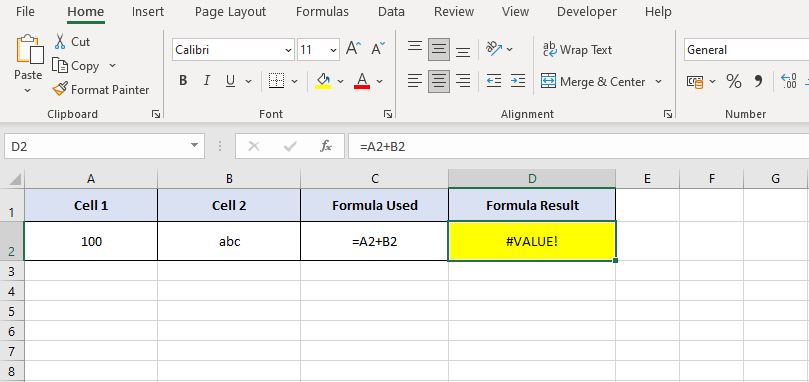
This scenario highlights the importance of data type consistency in Excel calculations. By understanding and rectifying these mismatches, you can restore harmony to your spreadsheets and keep the #VALUE! Error at bay.
Resolving the #VALUE! Error in Excel with Simple Tweaks
When facing the #VALUE! Error in Excel, you have a couple of straightforward options for a quick fix, especially effective when dealing with a limited amount of data that’s static.
Let’s revisit the earlier example. The root of the issue was cell B2 containing ‘abc,’ a text string, in a place where a numerical value was expected. To rectify this:
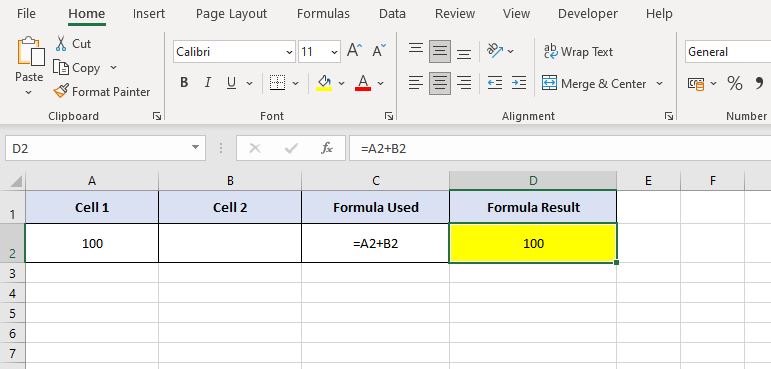
- Modify the Offending Cell: Replace the text in cell B2 with a numerical value. This could be a specific number relevant to your data, a zero if no value is applicable, or simply leave the cell empty if it’s not required for your calculation.
- Check Data Consistency: Ensure that all cells involved in your calculations are formatted correctly and contain the appropriate data types. This step is vital to prevent the recurrence of the #VALUE! Error.
By implementing these minor yet effective changes, you can swiftly eliminate the #VALUE! Error, paving the way for accurate and seamless calculations in your Excel worksheet.
Utilizing the ISERROR Function to Address the #VALUE! Error
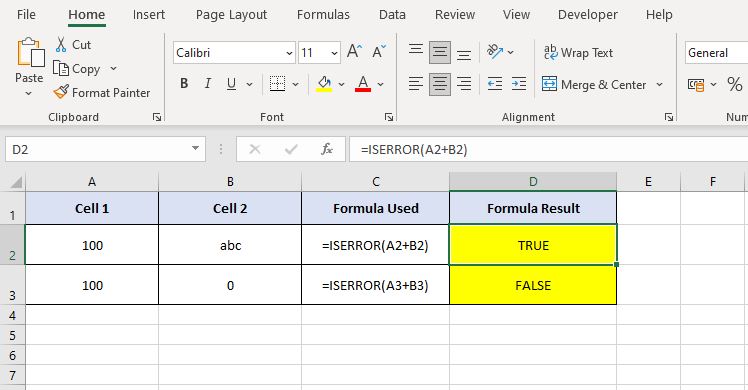
When tackling the notorious #VALUE! Error in Excel, the ISERROR function emerges as a strategic ally. This function is designed to test if a specific calculation leads to an error (returning TRUE) or executes smoothly (returning FALSE). This becomes particularly useful when dealing with the #VALUE! Error, as it allows you to identify and handle these errors efficiently.
For instance, consider a scenario where row 2 in your worksheet triggers a #VALUE! Error due to incompatible data types, while row 3 operates correctly with numerical data:
In such cases, integrating the ISERROR function with Excel’s IF function creates a powerful combination for error management. This synergy enables Excel to perform alternate actions based on the error status.
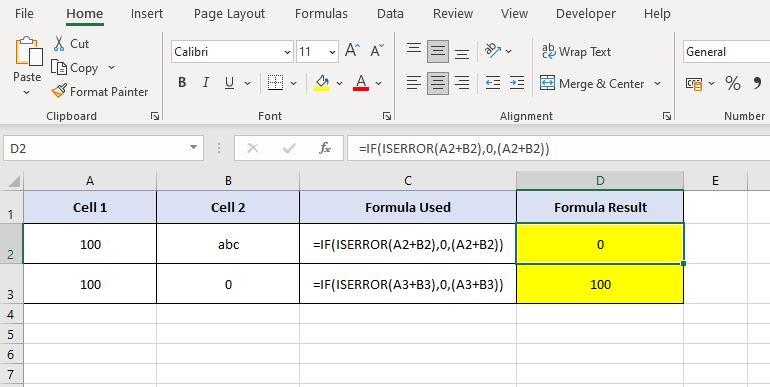
For example, you might want Excel to ignore error-affected calculations by outputting zero, while correctly adding values in error-free cells. The formula that encapsulates this approach is:
- =IF(ISERROR(A2+B2), 0, (A2+B2))
This command effectively directs Excel to assess the sum of cells A2 and B2 for the #VALUE! Error. If an error is detected, it replaces the error with 0, thus preventing any miscalculation. Otherwise, it proceeds with summing the values. The following image showcases how your Excel worksheet would adapt using this formula:
Conclusion
Overcoming the #VALUE! Error in Excel can be approached with varying levels of complexity, catering to both Excel beginners and those more versed in its functionalities.
- For minor adjustments, simply rectifying the data in the offending cells often suffices. This method is ideal for quick fixes, especially when dealing with smaller datasets or one-time errors. It’s a straightforward, beginner-friendly solution that addresses the immediate issue without delving into more complex functions.
- For a more comprehensive solution, the ISERROR function comes into play. This advanced technique is perfect for larger datasets or spreadsheets where errors might be more frequent or less predictable. By incorporating the ISERROR function into your formulas, you establish a robust error-checking mechanism. This not only resolves the current #VALUE! Errors but also safeguards your worksheets against similar issues in the future.
Whether you opt for a quick fix or a more advanced error-handling strategy, the key is understanding the root cause of the #VALUE! Error in Excel and choosing the right tool for your specific needs. Both methods provide valuable skills in your Excel toolkit, empowering you to manage your data with greater confidence and efficiency.
Remember, Excel is a versatile platform, and mastering its error resolution techniques can significantly enhance your data management capabilities. Keep experimenting, keep learning, and your spreadsheets will transform from mere data holders to dynamic, error-free repositories of information.
Keep Excelling,

After conquering the #VALUE! Error in Excel, are you up for another handy Excel trick? Next up, we dive into the efficient world of data organization with our guide, “How to Remove Blank Rows in Excel.” Learn how to keep your spreadsheets clean and professional by eliminating unnecessary blank rows. This skill is essential for maintaining pristine data sets and enhancing overall spreadsheet functionality. Click here to master the art of tidying up your Excel worksheets!